Friday, November 3, 2023

Spotify gratis!

https://guruhitech.com/come-avere-spotify-premium-gratis-su-smartphone-e-pc/ Come avere Spotify Premium gratis su smartphone e PC <
Si chiama Spotube ed è l’app multipiattaforma con tutte le funzioni di Spotify a pagamento! Di applicazioni che cercano di emulare Spotify ce ne sono a decine ma Spotube è senza dubbio quella che le batte tutte. Tanto per cominciare la puoi installare non solo su Android ma anche su Windows, macOS e addirittura su Linux. Spotube è infatti disponibile in tanti formati, ovvero .apk, .exe, .nupkg, .dmg, .deb, .AppImage e .targz. Restano fuori dai giochi naturalmente i dispositivi mobili di Apple (iPhone e iPad) dove, come sappiamo, l’installazione di app esterne allo store ufficiale è ancora un grosso problema.
Cos’ha di speciale Spotube? La meraviglia di questa applicazione è data non solo dalle tante interessanti funzionalità come ad esempio il download dei brani ma anche dal fatto che la puoi utilizzare con il tuo account Spotify. In parole povere, avere Spotube è quasi come avere Spotify Premium, ma in modo completamente gratuito! Inoltre la potrai utilizzare non solo sul tuo smartphone Android ma anche su qualsiasi PC. Naturalmente puoi creare le tue playlist, condividere i brani, modificare il tema grafico, la cartella di destinazione dei download e altro ancora. Come eseguire l’accesso con l’account Spotify L’app funziona a meraviglia su tutti i sistemi operativi che ho testato, ovvero Android, Windows e Linux. Rispetto alla versione per Android però c’è una differenza a cui dovrai prestare attenzione. Sebbene su Android il collegamento all’account Spotify sia molto semplice, nella versione desktop dovrai seguire un procedimento all’apparenza un tantino complicato. Su Android ti basta infatti inserire email e password del tuo account Spotify, o collegarlo al tuo account Facebook, Gmail o Apple.
Su PC dovrai invece inserire due codici: sp_dc sp_key
Non avevo mai sentito parlare di questi codici fino ad ora ma, in basso a destra, proprio sotto la voce “Submit“, c’è scritto “Follow along the Step by Step guide“. Cliccandoci su verrai quindi dirottato su un breve ma comprensibile tutorial che ti spiegherà come ottenere questi codici. Visto che ci siamo, ti spiego anch’io come fare: Entra nel sito open.spotify.com ed esegui l’accesso al tuo account Spotify. Ora clicca il tasto F12 della tastiera per entrare nella pagina “Ispeziona“. Nel tab centrale clicca su “Application” e nella colonna di sinistra seleziona “Cookies“.
Clicca su “https://open.spotify.com” ed ecco spuntare i codici di cui hai bisogno. Dovrai cliccarci su, copiarli uno ad uno e poi incollarli nella precedente tabella del login.
In questo passaggio fai attenzione perché il primo codice (sp_key) lo dovrai incollare nella seconda opzione (sp_key Cookie), mentre il secondo (sp_dc), andrà incollato nel primo (sp_dc Cookie). Una volta incollati i due codici, clicca su “Submit“.
E adesso goditi Spotube sul tuo computer! Come ottenere Spotube Siamo arrivati alla parte più interessante, ovvero quella per scaricare questa incredibile app multipiattaforma. Ebbene, tutti i file sono disponibili sul sito ufficiale seguente: spotube.netlify.app

Thursday, October 19, 2023

Samsung TV Plus -1500 channels via IPTV

Install on Firetv or any IPTV client Samsung TV Plus and enjoy 1500 IPTV channels for free! https://troypoint.com/samsung-tv-plus-on-firestick/ M3U8 link: https://i.mjh.nz/SamsungTVPlus/all.m3u8 Windows 10 - https://apps.microsoft.com/detail/9PJJ2NMBF0TR?hl=en-us&gl=US Skip to content TRENDING NOW: FEN Kodi Addon - Unlock Netflix Libraries - IPTV Guide TROYPOINT Jailbreak Firestick VPN Kodi IPTV Best APKs Streaming Sites Torrent Sites Tools Blog Insider Search Get 1,000+ Free Secret Apps on Firestick & Android TV/Google TV TV Channels Get Free Guide Now HomeIPTVHow to Watch Samsung TV Plus on Firestick & Fire TV (2023) How to Watch Samsung TV Plus on Firestick & Fire TV (2023) August 8, 2023 / IPTV, Streaming Apps samsung tv plus on firestick The following tutorial will provide you with step-by-step instructions to watch Samsung TV Plus on Firestick/ Fire TV. Samsung TV Plus is a Free IPTV Service that carries hundreds of live channels for streaming. Unfortunately, it is currently not available for installation on Amazon Firestick & Fire TV devices. Luckily, we can still access these channels with a Video Player or IPTV Player. The Amazon Firestick is the most popular media device available today due to its low price point and “jailbreaking” abilities. How to Unlock Your Firestick Device Users can also watch Samsung TV Plus on a Firestick via a web browser such as Google Chrome. We provide step-by-step instructions for both methods which you can find below. Oftentimes, Firestick owners can access applications not available in the Amazon App Store by sideloading the APK. However, Samsung has blocked access to its APK on Firestick and Fire TV devices which means we must use a workaround. In the guide below, we are using a Fire TV Stick 4K Max. However, this will also work for any variation of Fire TV including Firestick Lite and Fire TV Cube. Those using Android devices such as NVIDIA SHIELD, MECOOL, or Chromecast with Google TV can find Samsung TV Plus in the Google Play Store. Samsung TV Plus – Google Play Table of Contents [Show] How to Watch Samsung TV Plus on Firestick & Fire TV 1 – Install IPTV Smarters Pro In this guide, we will use IPTV Smarters to watch Samsung TV Pus on Firestick. However, other Players such as TiviMate, Smart IPTV, and more will also work for this tutorial. 1. Install the Downloader app from your respective App Store (Amazon App Store or Google Play) and enable Unknown Sources within the settings of your streaming device. Install Downloader & Enable Unknown Sources YOU'RE BEING TRACKED... Your online activity is tracked by your government, Internet Service Provider, app/addon/IPTV devs and all websites through your identifying IP address Stream anonymously by using Surfshark VPN Your Current Identifying IP Address: 95.142.184.11 SAVE 85% ON SURFSHARK VPN + 2 FREE MONTHS Surfshark backs their service with a 30-day money back guarantee Use your account on unlimited devices & share with family members HURRY! SALE ENDS SOON Claim Surfshark VPN Discount 2. Launch Downloader. launch downloader 3. Hover over the URL bar and click the select button on your remote to open the keyboard. click select button on remote to launch url bar 4. Type the Downloader Code for the TROYPOINT Toolbox which is 250931 and click Go. type downloader code for troypoint toolbox 5. You will then see a redirect page. redirect page for troypoint toolbox 6. This brings you to the TROYPOINT Toolbox home screen. troypoint toolbox home screen 7. Scroll down to find IPTV Smarters Pro and click Download. click download for iptv smarters samsung tv plus 8. Wait for the application to download. wait for iptv smarters to download for samsung tv plus 9. Click Install. Get 1,000+ Free Secret Apps for Fire TV / Android TV TROYPOINT Secret Apps Install Secret Apps on Fire TV/Android TV! Instructions for installing secret apps will be immediately delivered to your inbox. We won't send you spam. Unsubscribe at any time. click install for iptv smarters samsung tv plus on firestick 10. You will then encounter IPTV Smarters Pro Ready to launch! message. iptv smarters pro ready to launch 11. Click Open. click open for samsung tv plus with iptv smarters Mint Mobile $15 Per Month 2 – Integrate Samsung TV Plus M3U URL With IPTV Smarters now installed on our device, we can integrate the Samsung TV Plus M3U for live channels. 1. After opening IPTV Smarters, select TV and click Save. select tv and click save 2. Choose Load your Playlist or File/URL. choose load your playlist or file/url 3. Click Allow. click allow for samsung tv plus on firestick 4. Click to select Playlist Name. click playlist name for samsung tv plus 5. Type STVPlus or other name of your choice and click Next. type stvplus for samsung tv plus on firestick 6. Select M3U URL for Playlist Type. select M3U URL for samsung tv plus 7. Click Input m3u line. click input m3u line 8. Type the following URL Address exactly as it is shown here: https://i.mjh.nz/SamsungTVPlus/all.m3u8 and click Next. Type the following URL Address exactly as it is shown here: https://i.mjh.nz/SamsungTVPlus/all.m3u8 and click Next. 9. Click Add User. click add user 10. You will then encounter User added successfully! message. user added succesfully for samsung tv plus on firestick 11. Select Live TV. select live tv 12. You can now access Samsung TV Plus Channels on Firestick or Fire TV. Enjoy! samsung tv plus channels Enjoy! Users can also access Samsung TV Plus on Firestick using a Web Browser. Follow the guide below if you prefer to access Samsung TV Plus on Firestick via browser. Samsung TV Plus on Firestick via Web Browser Using a web browser on Firestick is a fabulous way to access Free Movie Websites, Sports Streaming Sites, and more. These devices come with Amazon Silk Browser pre-installed which works perfectly for tons of web browsing. Unfortunately, it does not work with the Samsung TV Plus Official Website. We suggest installing another browser such as Google Chrome to stream these live channels on your device. Google Chrome on Firestick NOTE: Some browsers may require Mouse Toggle on Firestick for full navigation features. 1. Launch Google Chrome or other Web Browser and go to samsungtvplus.com. samsungtvplus.com for samsung tv plus on firestick 2. Click Agree. click agree for samsung tv plus on firestick 3. You can now access Samsung TV Plus on Firestick for live streaming. samsung tv plus on firestick Enjoy! Samsung TV Plus Channels There are tons of channel options available via Samsung TV Plus and are absolutely free. These are available in numerous categories including News & Opinion, Entertainment, Crime, Sports, Reality, Movies, and more. Some of the most popular options include: PBS Kids ChiveTV Kitchen Nightmares MTV Pluto TV Tastemade Outdoor America Pac 12 Insider bein Sports Xtra Stadium Court TV VICE ET Live Cheddar ABC News Live CBS News and more Kodi users can install the Samsung TV Plus Kodi Addon for access to these channels on any Kodi device. For more streaming options, check out our popular resource guides below. Best Streaming Apps Best Firestick Apps Kodi Addons Kodi Builds

Monday, November 28, 2022

Install Windows 11 without TPM 2.0


How to install Windows 11 without TPM 2.0

Ashwin
Oct 5, 2021
Updated • Oct 6, 2021
Windows 11 Help
|
12

In case you missed it, Windows 11 has been officially released a day earlier than anticipated. You may be looking for a way to upgrade to the OS. There are several ways to download Windows 11. That's fine if you have a relatively modern computer. But the setup will run a check to see if your device is compatible with the new operating system.
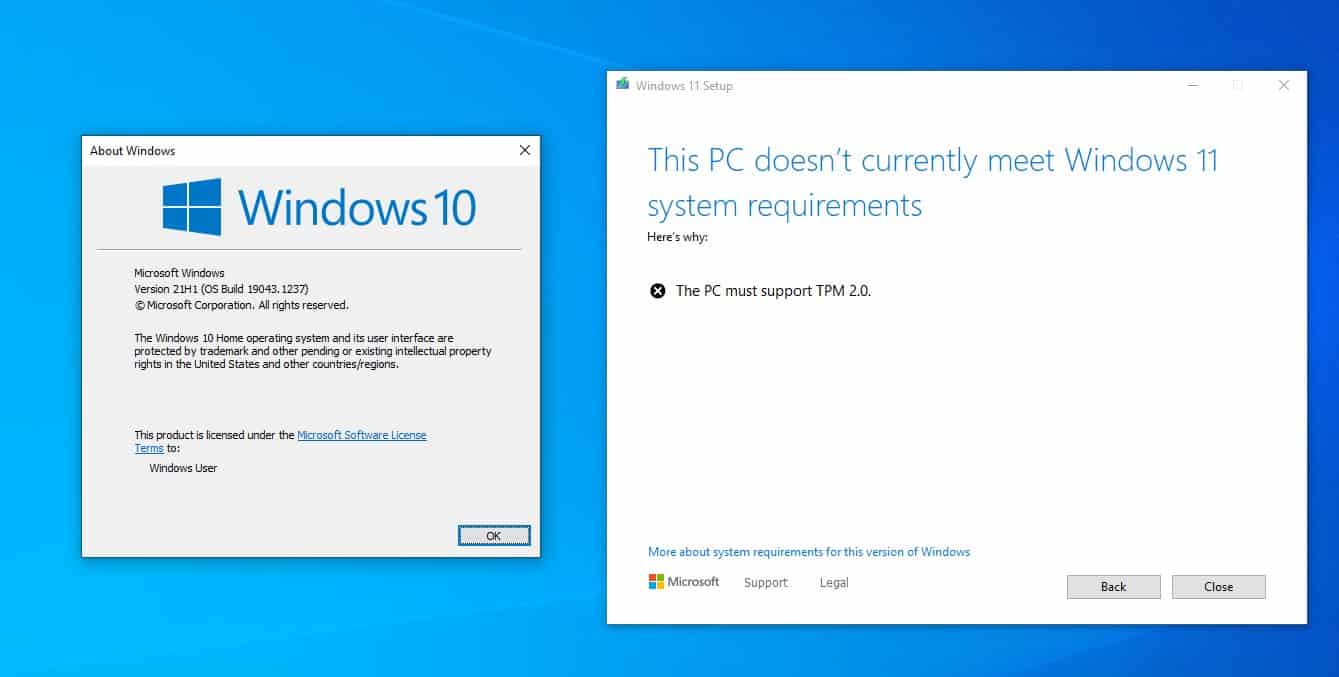
How to bypass TPM 2.0 requirement to install Windows 11

One of Windows 11's requirements is TMP 2.0 (Trusted Platform Module), it is a component that is present in Intel 8th generation CPUs, and AMD Ryzen 2nd-gen (2000 or above). If you have an older processor, it won't be compatible with the new OS, at least that's what the installer will tell you and the process fails.

Tip: find out whether your computer is compatible with Windows 11 using Microsoft's PC Health Check app.

Microsoft isn't saying that older processors won't be able to run Windows 11, just that it won't support the systems officially. So in reality, you can use Windows 11 on old computers. I've been using it on my free VMWare Workstation sans the TPM option, since the first build was leaked. Recent insider builds however blocked the installation due to the TPM check, but I bypassed this requirement quite easily.
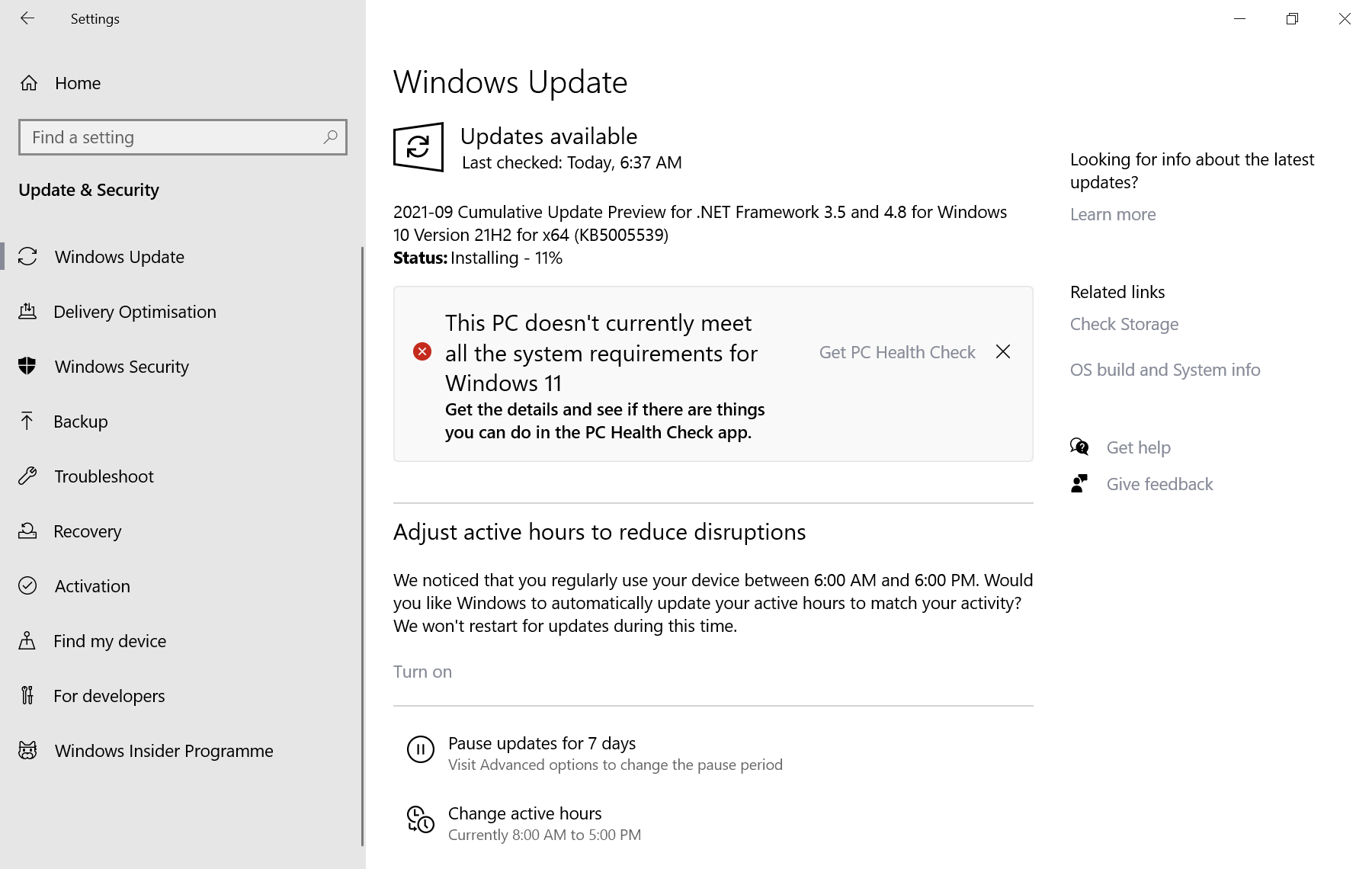
this pc doesn't currently meet all the system requirements for windows 11

Note: Windows Update displays a notification if the device is not compatible with Windows 11. It states the following: This PC doesn't currently meet all the system requirements for Windows 11. The notification links to Microsoft's PC Health Check tool, which offers more details on the incompatibilities.

You will need a copy of Windows 11, if you don't have one get the ISO, before following the steps below.  Here's how you can download Windows 11 safely.

Install Windows 11 on devices without TPM

Option 1 - Universal MediaCreationTool Wrapper

Note: Microsoft confirmed the bypass method to install Windows 11 that the tool uses officially.

1. Download the tool (use the download as ZIP button) and extract the archive's contents to a folder.

2. Open the directory, and select the file named Skip_TPM_Check_on_Dynamic_Update.cmd.

3. Right-click on it and select run as administrator.
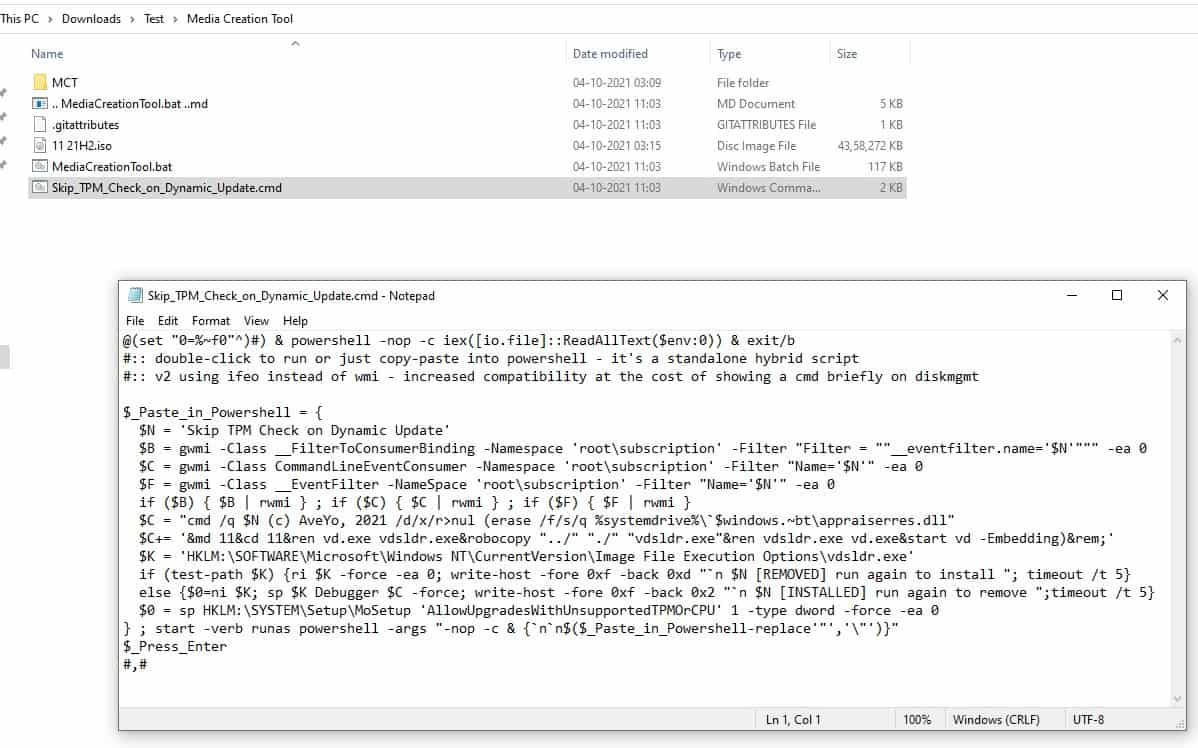
How to install Windows 11 without TPM 2.0

The command essentially does 2 things: it deletes a file called "appraiserres.dll", and creates a registry key that allows the installation of Windows 11 without TPM 2.0. This is by far the simplest method, and the one we recommend. Martin has written an article about the tool, which you can read for reference. It includes a wrapper for Microsoft's official Media Creation Tool as well, and you may run it to install Windows 11 using it on the device you are using.

Option 2 - Delete the Appraiser files

1. Mount the Windows 11 ISO in Explorer.

2. Copy the image's contents to a folder.

3. Navigate to the Sources folder, and delete the files named appraiser.dll and appraiser.sdb files.
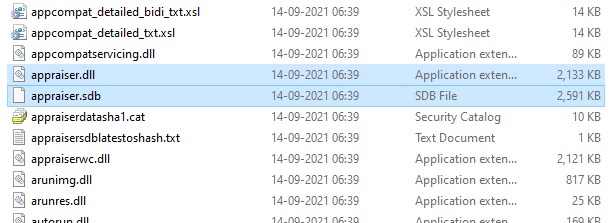
Windows 11 Delete appraiser files

Run the set-up, and it should bypass the TPM 2.0 check. If it still doesn't work, check the C:\$WINDOWS.~BT\Sources directory on your computer's drive, to see if it has the two files mentioned above, and delete them. This is the method that I used for upgrading my VM install of Windows 11 to a newer build.

Option 3 - Using Windows 10's files to install Windows 11

You will need an ISO for Windows 10, as well as one for Windows 11 for this method.
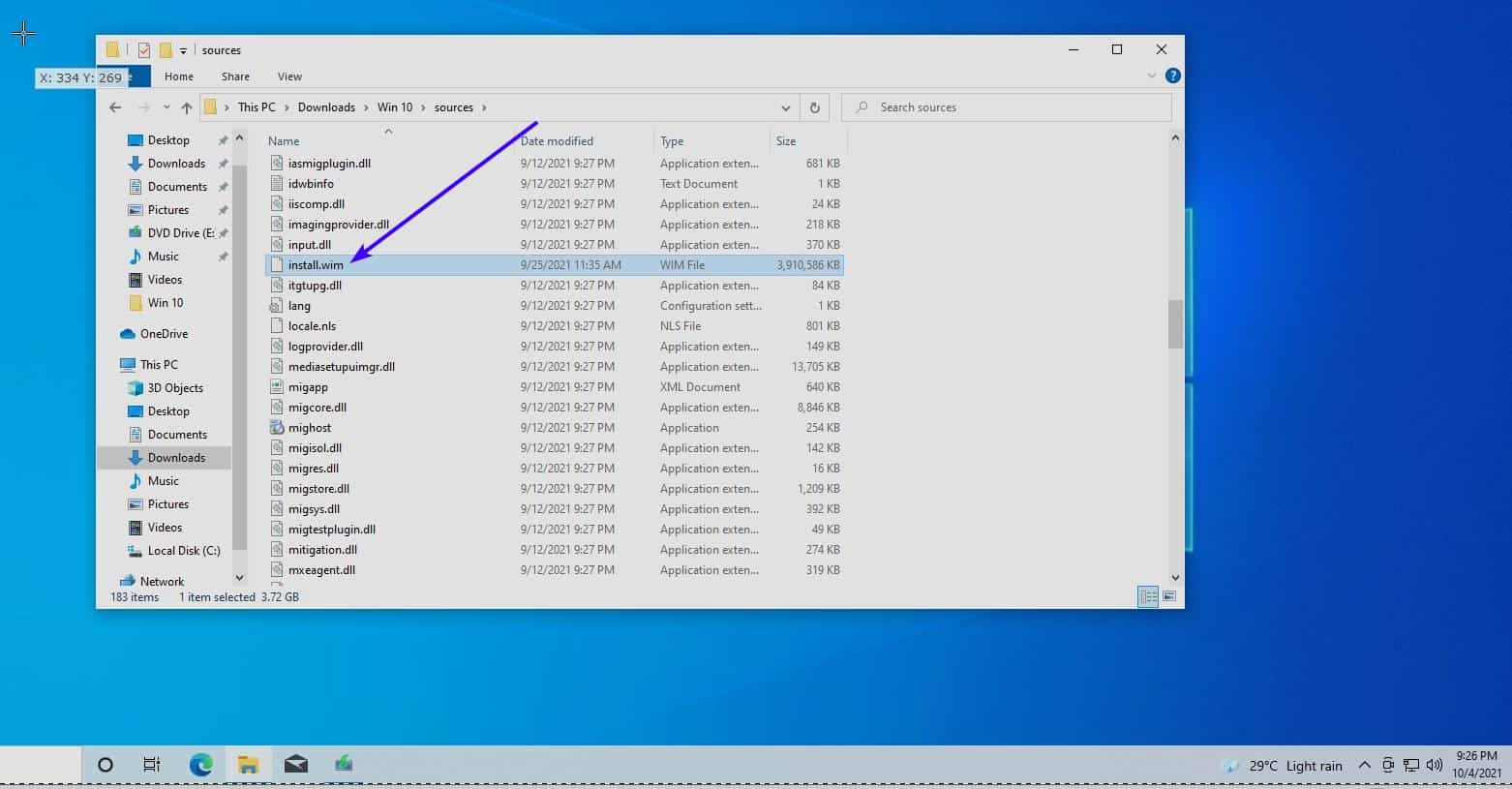
win 11 using win 10 install files

1. Open the Windows 10 ISO, and copy all the files in the source folder, except for the file named Install.ESD , to a separate folder.

2. Load the Windows 11 image in Explorer, copy the Install.WIM file to the folder where you copied the other content to.

3. Start the Windows 10 setup file. Yes it may sound crazy, but it tricks the setup into using Windows 10's requirements instead of Windows 11's, allowing your computer to pass the check.
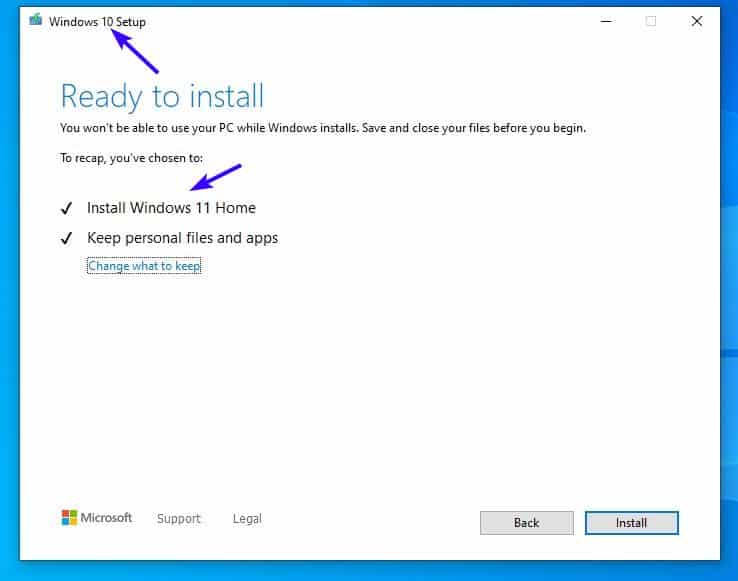
Install Windows 11 by replacing a Windows 10 file

I tested this in a new VM installation yesterday, and it still works.

Note: You need to have UEFI BIOS and Secure Boot enabled on your computer to install the new OS.

Do you have a different way to bypass the TPM 2.0 requirement to install Windows 11?

Summary
Learn how to install Windows 11 without TPM 2.0
Article Name
Learn how to install Windows 11 without TPM 2.0
Description
Don't have a TPM 2.0 compatible PC? You can still install Windows 11 using these methods.
Author
Publisher
Ghacks Technology News
Logo
Advertisement

Comments

  1. has-anyone-tried-this said on October 5, 2021 at 10:43 am
    Reply

    Is it possible to use offline accounts at all on Windows 11 Home?

    If an online account is needed to register the installation, would it be possible to set it up, create an offline admin account, remove the online one and use the offline account for the reminder of the system’s life?

    1. Martin Brinkmann said on October 5, 2021 at 10:47 am
      Reply

      Yes, offline accounts are supported on Windows 11 Home. I have not tried it, but there are workarounds to set up an offline account during Windows 11 Home installations, see here for example: https://www.extremetech.com/extreme/326879-how-to-install-windows-11-home-with-a-local-account

  2. flagada said on October 5, 2021 at 2:23 pm
    Reply

    Hi, I use Winreducer to easily manage what I want to keep or remove from the original .iso, but also edit the register and preset the first launch so that it won’t force/push me to use an online account, cortana etc. I create my local account in advance. Maybe that can help you make some settings of your choice – to trick Windows 11 for example.

  3. djdeejay said on October 5, 2021 at 3:14 pm
    Reply

    Method with appraiser not working on final version.

  4. semce said on October 5, 2021 at 3:42 pm
    Reply

    I installed Win 11 using a local account. I was asked to enter a MS log in to associate with my local account and after that it worked. I still use my local account on both my pcs. I may be wrong but I am concerned that using a MS account only would prevent me from logging on if the internet goes down. Comcast tends to drop on occasion.

  5. common sense computing said on October 5, 2021 at 4:46 pm
    Reply

    This isn’t a problem right away, but once MS starts putting the screws on 7-10 users, they will be forced to buy new hardware or purchase Windows 365 subscriptions.

    Right now the only people flocking to Win 11 are idiots, fanboys, and tech writers.

  6. xz69 said on October 5, 2021 at 8:12 pm
    Reply

    I got the message “this PC doesn’t currently meet all the system requirements for Windows 11” so I changed the BIOS to enable TPM. I went back to run PC Health Check app and it now says everything is fine for Windows 11. But when I go to Windows Update again I get the same “doesn’t meet the requirements” message. Any ideas as to what’s going on? Thanks

    1. EP said on October 6, 2021 at 12:54 am
      Reply

      @xz69 – consider using the ISO method like Ray here did. download the Win11 ISO image and run setup from the ISO install media instead of relying on windows update

  7. Ray said on October 5, 2021 at 9:09 pm
    Reply

    I didn’t have success with the cmd script with an older CPU processor. However, my PC did pass all the other requirements.

    What worked for me was simply downloading the full Windows 11 ISO and installing it over Windows 10. There’s an option where it asks you to that you’re using an old processor. You can just hit “Allow” and set up will complete.

  8. Go for it said on October 6, 2021 at 3:43 am
    Reply

    Step 1: Install Zorin OS 16
    Step 2: Install these https://www.gnome-look.org/p/1546069
    Step 3: Enjoy your fast, safe and personal computer

  9. Anonymous said on October 20, 2021 at 3:51 pm
    Reply

    Not doing anything, i was able to install Windows 11 ENT from a flash drive to a system w/o a compatible cpu, but had secure boot and tpm2. With the image created from this install i was able to get it running on systems without a compatible cpu or a TPM2 module though it will not run on systems w/o secure boot enabled. Uncertain if this is a work around or if this is expected behavior, no idea

  10. hhhgg said on November 16, 2022 at 8:14 am
    Reply

    TPM 2.0

Leave a Reply

Check the box to consent to your data being stored in line with the guidelines set out in our privacy policy

We love comments and welcome thoughtful and civilized discussion. Rudeness and personal attacks will not be tolerated. Please stay on-topic.
Please note that your comment may not appear immediately after you post it.

Monday, June 13, 2022

Saint Elisha, Prophet - From a sermon of St Ambrose, bishop

Saint Elisha, Prophet

From a sermon of St Ambrose, bishop


The healing of the waters, a type of the Church

What shall we say about the merits of Elisha? The first thing we praise him for is that he wanted to surpass his father [Elijah] in grace, for he asked for more than Elijah was able to bestow. Although he was greedy in his request, he was nonetheless worthy to have it granted. For while he demanded more from his father than Elijah had to give, through his own merits he enabled him to bestow more than he possessed.
  Following his master’s ascent, when Elisha arrived in Jericho, he was invited by the townspeople to remain with them; they said: this is an excellent site for the town, except that the water is bad and causes sterility. He then asked for a clay jar, filled it with salt, and went to the place where the water was coming up out of the ground; he threw it into the water saying: “Thus says the Lord: ‘I have purified these waters; never again shall death or sterility come from them.’” And those waters remain pure even to this day.
  So we see how remarkable Elisha’s merits are: in response to the citizens’ hospitality his very first gift to them was great fruitfulness. For by healing the water, he provided for their posterity. What he did was not for the benefit of any one person, or any one family: it was for all the people of the entire city. Had he delayed, they would all have been sterile and grown old without descendants, and the city would have been left deserted. Thus, by healing the waters Elisha healed the people; and by blessing the spring, he provided them as it were with a fountain of life. For just as through his blessing good water came forth from the unseen veins in the earth, so too from the seclusion of their wombs mothers gave birth to healthy children.
  For Elisha did not bless only the water that was already flowing into the spring’s basin, but rather all the water without distinction which was yet to flow little by little from the earth’s hidden moisture even until now. As Scripture has it, Elisha blessed the place where the water was coming up out of the earth, to indicate that it was the flowing water rather than the basin of the spring that he had sanctified. Thus, as the Apostle Paul says, all these things happened as signs; let us try to discover, therefore, the truth contained in this sign.
  The church is the sterile city which, before the coming of Christ, suffered from sterility due to the pollution of the waters – that is, to the idolatry of the gentiles – and was unable to bring forth children for God. But when Christ came and took on the fragile clay of the human body, he healed the pollution of the waters; that is, he banished the idolatries of the gentiles, and immediately the church, which had been sterile, began to be fertile.
  Thus the Apostle also says: Rejoice, you barren one who bear no children; break into song, you stranger to the pains of childbirth! For many are the children of the wife deserted-far more than of her who has a husband! For Christ brought to birth more children from the church which had been sterile than he had from the synagogue which had been fertile.


Sunday, May 1, 2022

Think Different - Noble Prize for transportation technology


This is actually a rhino, hanging upside down from its ankles, being dangled by a helicopter.


Your first thought might be that this is horrendous! The poor animals are going to be severely hurt! Surely, this must be the work of someone without a soul.

Nope, this is a science experiment, being funded by Namibian Ministry of Environment. And it’s actually helping them to save the rhino population from dwindling even more.

You see, due to widespread poaching of these animals, their populations have become very low, with most of the animals being concentrated in places like national parks and wildlife reserves. However, there’s a problem which arises due to this high concentration - inbreeding.

Rhinos, unable to find mates from outside, have to resort to mating among their own gene pool. This, of course, leads to a lot of problems - none of which are good for the rhino population.

Because of this, groups dedicated to preserving these majestic beasts have been shifting rhinos away from their families when they reach maturity, so that they can reproduce outside their own gene pool, and prevent inbreeding.

https://qph.fs.quoracdn.net/main-qimg-1ecc16ebeb51cc19d32d9c63fba79abd-lqAs to how they performed this shifting?

The rhinos were tranquilized, before being secured in box. This box, containing the rhino lying in it, was then flown to other regions by helicopters.

However, analysis showed that this position was quite harmful to the rhinos.

In this position, the muscles of the side on which they were lying, get damaged. These muscles are simply unable to handle their immense weight.

Their lungs also suffer. I don’t exactly get how, but from what I understood, its due to the imbalance of oxygen supply to the two lungs. The one on the lying side gets a lot of oxygen, but the one facing the sky gets too little.

And here enters the hero of our story, Robin Radcliffe, a wildlife veterinarian from Cornell Uni. He proposed that instead of being carried on their side, the rhinos should be hung from their ankles (Ya, I don’t get it either)

This sounds like an insane idea, and it is! But much to everyone’s surprise, his solution actually was proven to be better than the previous method.

He and his colleagues showed the effectiveness of this method by transporting 12 tranquilized black rhinos with the help of the Namibian Ministry of Environment.


In fact, the guy’s idea was so ridiculous, yet effective, that he won the ig-nobel prize for transport technology this year!

The motto of the ig-noble prize is: “Research that makes people laugh and then think”.

And I must say, if there’s any piece of research which deserves this prize, its this one.

https://qr.ae/pv2Lsd